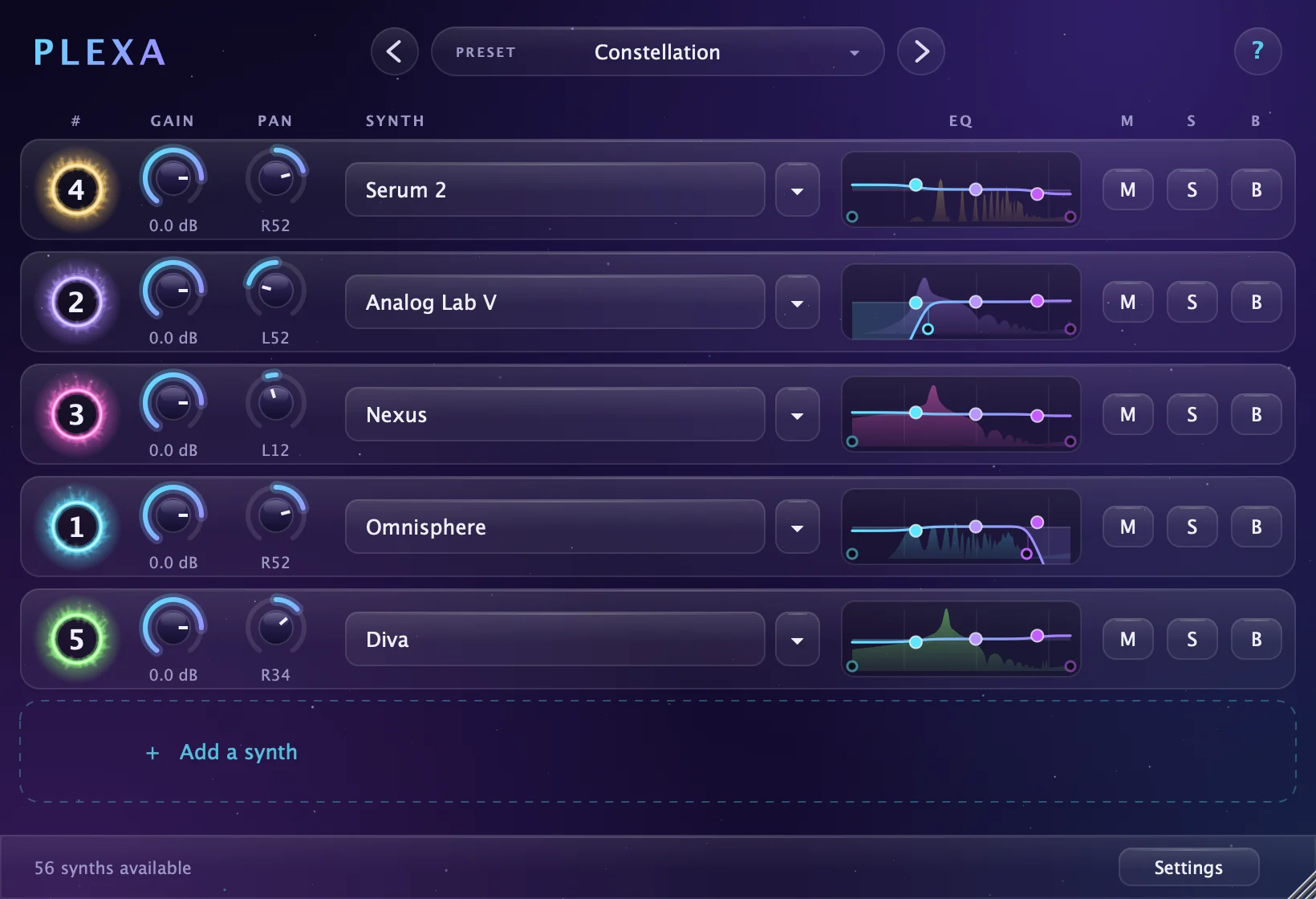
What Plexa does
Plexa loads other synth plugins inside itself and hands each held key to a different synth, so a chord becomes a layer of different sounds.
Load a pad on synth 1, a pluck on synth 2, a bass on synth 3 and a lead on synth 4, then play a four-note chord. The first key you press plays the pad, the second the pluck, the third the bass and the fourth the lead. Each synth has its own EQ, gain, pan, mute, solo and bypass, so you can balance the layers like a small mixer. Change a row's number to change the order, or give several synths the same number to stack them on one key. Or choose a preset to set the play order, gain, pan and EQ of every row at once.
Plexa only loads instrument plugins (synths, samplers, ROMplers). Effects never appear in its list.
Installing Plexa
Plexa runs on macOS as an Audio Unit (AU), a VST3 plugin and an AAX plugin (for Pro Tools), and on 64-bit Windows 10 and 11 as a VST3 plugin and an AAX plugin. Download the installer for your computer from My products in your account on welcomecarson.com. One licence works on either.
On a Mac
Double-click the installer you downloaded (Plexa-1.1.0.pkg) and follow its steps; like any installer, it asks for your Mac's password. It installs all three formats. To leave one out, click Customize on the Installation Type step.
| Format | Installs to | Used by |
|---|---|---|
| AU (Plexa.component) | /Library/Audio/Plug-Ins/Components | Logic Pro, GarageBand, FL Studio, Ableton Live and most Mac DAWs |
| VST3 (Plexa.vst3) | /Library/Audio/Plug-Ins/VST3 | FL Studio, Ableton Live, Cubase, Studio One, Reaper |
| AAX (Plexa.aaxplugin) | /Library/Application Support/Avid/Audio/Plug-Ins | Pro Tools |
On Windows
Double-click the installer you downloaded (Plexa-1.1.0-Setup.exe) and follow its steps. It first asks who to install Plexa for:
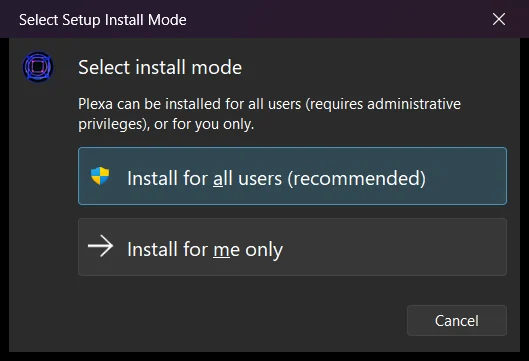
| Choice | Installs to | Notes |
|---|---|---|
| Install for all users (recommended) | VST3: C:\Program Files\Common Files\VST3; AAX: C:\Program Files\Common Files\Avid\Audio\Plug-Ins | Windows asks for an administrator's permission. Every DAW looks in these folders. |
| Install for me only | VST3 only: C:\Users\(your name)\AppData\Local\Programs\Common\VST3 | No administrator needed. Some DAWs don't look in this folder: if yours doesn't find Plexa, add the folder to the ones it searches for plugins. |
With Install for all users, a Choose Formats page follows the licence. The VST3 is always installed, and AAX: For Pro Tools is ticked; untick it if you don't use Pro Tools. The AAX goes in C:\Program Files\Common Files\Avid\Audio\Plug-Ins, the only folder Pro Tools looks in.
The AAX version for Pro Tools requires installing for all users, so Install for me only installs just the VST3, and the installer's last page says so. To add the AAX later, run the installer again and choose Install for all users.
Plexa for Windows is 64-bit, like nearly every Windows DAW. Installing a newer version replaces both plugins. If your DAW has Plexa open while you install, the installer asks to close it first.
To remove Plexa, open Windows' Settings > Apps > Installed apps, find Plexa, and click Uninstall. It removes both the VST3 and the AAX. If your DAW has Plexa open, the uninstaller asks you to close it first. Your licence and settings stay, so installing Plexa again doesn't ask for your code. To use Plexa on another computer, deactivate it before uninstalling (see Moving Plexa to another computer).
Finding Plexa in your DAW
After installing or updating, let your DAW rescan its plugins, then look for Plexa under instruments (generators in FL Studio), not effects.
- FL Studio: open the Plugin Manager and click Find installed plugins.
- Logic Pro: Settings > Plug-in Manager > Reset & Rescan Selection if Plexa does not appear.
- Ableton Live: Settings > Plug-Ins > Rescan. On Windows, turn on Use VST3 Plug-in System Folders first.
- Pro Tools: Pro Tools looks for new plugins when it starts, so quit and reopen it. On an Instrument track, click an empty insert slot and choose plug-in > Instrument > Plexa. The AAX is the same Plexa as the other formats, with the same licence, settings and synth list (on Windows, its synths are VST3 plugins). Plexa is a real-time instrument, so it isn't in Pro Tools' AudioSuite menu.
- REAPER: Options > Preferences > Plug-ins > VST, then Re-scan. If you installed Plexa on Windows for you only, add its folder to the VST plug-in paths there first.
Quick start
- Add Plexa to an instrument track (a channel in FL Studio).
- The first time Plexa's window opens, it asks for your licence code: paste the code from your purchase email and click Activate (see Activating Plexa). Plexa then offers a quick tour of its controls. Click Yes, show me around to take it (see Taking the tour), or No thanks.
- In Plexa's window, click + Add a synth and pick a synth from the list. Type a few letters to search.
- Repeat until you have as many synths as notes you want to layer, usually 2 to 6. Plexa holds up to 10.
- Click a synth's name to open its own window and choose a sound. While its window is in front, that synth plays every note by itself, so you hear just the sound you're choosing.
- Play a chord. Key 1 goes to synth 1, key 2 to synth 2, and so on.
- Balance the layers with each row's Gain and Pan knobs, then shape each layer's tone with its EQ.
- Try the presets at the top of Plexa's window: click the name for the list, or use the arrows either side, to set every row's play order, gain, pan and EQ in one go. They fit however many synths you have.
Taking the tour
Every time Plexa is activated with a licence code (the first time, or again after deactivating), it welcomes you and offers a quick tour. Once you've answered, the welcome doesn't appear again, even in new projects, until Plexa is next activated.
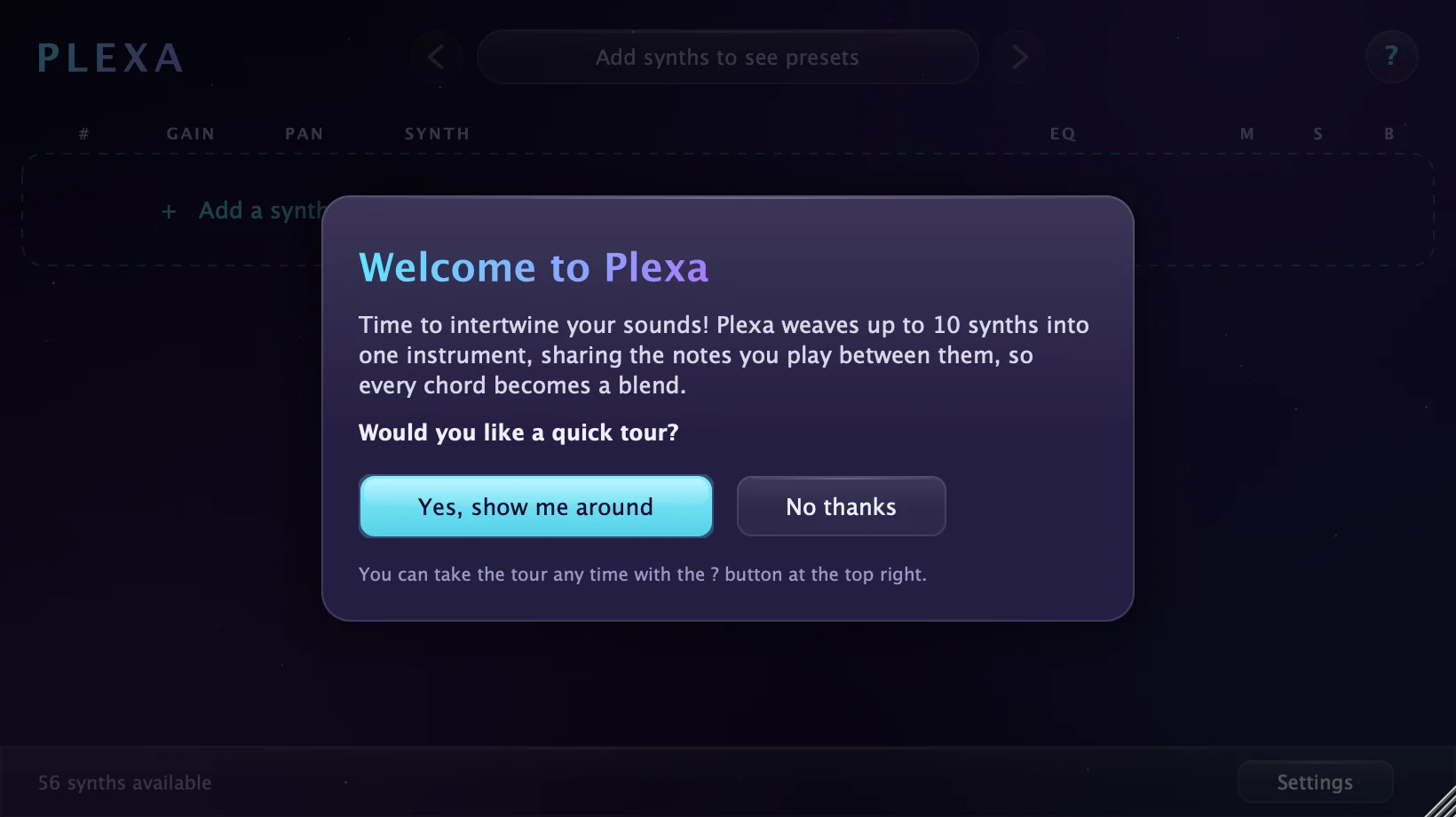
The tour takes you through Plexa one control at a time. The rest of Plexa dims, a glowing ring circles the control, and a card with an arrow explains what it does. It covers adding synths, the play-order number, gain, pan, the synth's own window, the EQ, mute, solo and bypass, the presets (with pictures of how the list grows as you add synths), the Settings button (refreshing the synth list, and your licence), a bonus tip on strumming your chords, and the ? button.
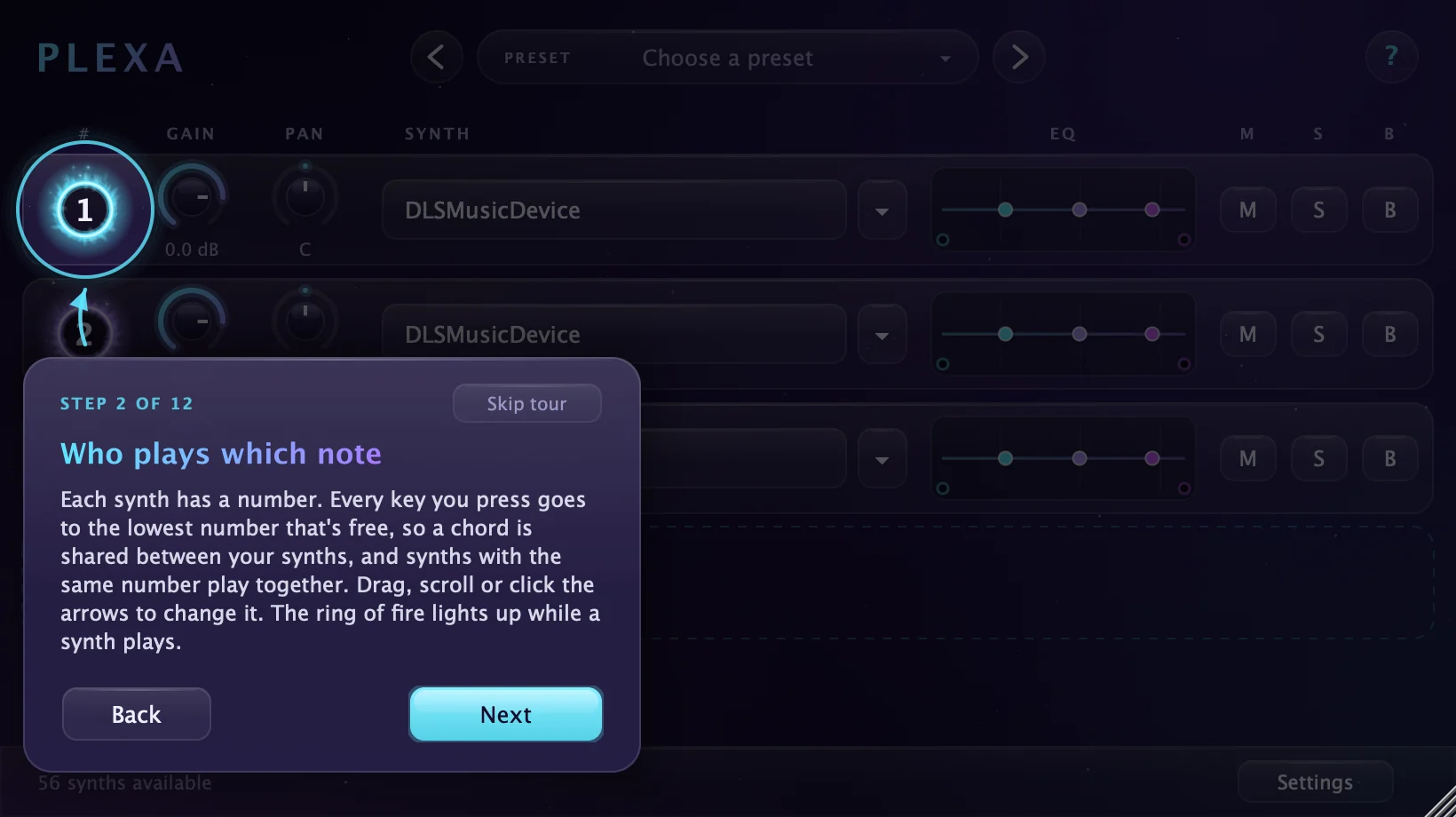
- Next and Back move through the steps (or press the right and left arrow keys). Finish on the last step closes it.
- Skip tour (or Escape) closes it at any point.
- Take it again any time with the round ? button at the top right of Plexa's window.
- While the tour is showing, the rest of Plexa can't be clicked. With no synths loaded yet, the tour points at the column headings instead.
How notes are shared
Every synth has a play-order number, shown at the left of its row. Each new key goes to the lowest number that is not already playing a key, and synths that share a number play that key together. When every number is busy, the highest number also plays the extra keys.
| Synths and their numbers | You play | Who plays what |
|---|---|---|
| 4 synths: 1, 2, 3, 4 | A 4-note chord | Your 1st key on number 1, 2nd on 2, 3rd on 3, 4th on 4 |
| 4 synths: 1, 2, 3, 4 | Release everything, then a new chord | Starts again at number 1 |
| 4 synths: 1, 2, 3, 4 | A 4-note chord, then lift every finger except the 3rd and play 3 new keys | New keys go to numbers 1, 2 and 4; number 3 is still busy |
| 3 synths: 1, 2, 3 | A 5-note chord | 1 plays key 1, 2 plays key 2, 3 plays keys 3, 4 and 5 |
| 4 synths: 1, 1, 2, 3 | A 3-note chord | Both synths numbered 1 play key 1 together, then 2, then 3 |
| 4 synths: 3, 1, 4, 2 (rows top to bottom) | A 4-note chord | Key 1 plays on row 2, key 2 on row 4, key 3 on row 1, key 4 on row 3 |
| 4 synths: 1, 1, 2, 4 | A 3-note chord | Number 3 is unused, so it is skipped: key 3 goes to number 4 |
| 3 synths: 1, 2, 3, with 3 bypassed | A 4-note chord | 1 plays key 1, 2 plays keys 2, 3 and 4 |
| 3 synths: 1, 2, 3, with 2 muted | A 3-note chord | Number 2 still takes key 2, silently |
The finer points:
- Releasing a key frees its number for the next new key. The release always reaches every synth that played it, even if you changed the numbers while holding it.
- Pressing a key that is already down (some controllers send this) replays it on the same synths.
- Mute silences a synth but it still takes its turn. Bypass removes it from the rotation entirely; if it shares a number, its partners still play.
- The sustain pedal is ignored and reaches no synth.
- Pitch bend, mod wheel and other controllers go to every synth that is not bypassed.
- A synth that is still loading, or couldn't load, is skipped until it is ready.
Tip: strum your chords. Keys are shared out in the order they arrive, so the order of a chord's notes decides which synth plays which. A chord played all at once arrives in whatever order your DAW sends it. Try your DAW's strum tool on a chord instead (in FL Studio, the Piano roll's Strumizer): strummed upwards, number 1 plays the lowest note; strummed downwards, it plays the top note. Each way combines your sounds differently, so it's a quick way to find new layers.
Changing the play order
Scroll over a row's number, drag it up or down, or hover and click the small arrows above and below it. Each click of a mouse wheel moves it exactly one step, however gently you turn it; on a trackpad, about a finger's width of scrolling does. Scrolling or clicking wraps round: down from 1 goes to the highest number, and up from the highest goes back to 1. Dragging stops at either end instead. The number can be anything from 1 to the number of synths you have loaded: with 4 synths you can choose 1, 2, 3 or 4.
- Give two or more synths the same number to layer them on the same key. Every number has its own fire colour, so synths sharing a number burn the same colour with their flames moving in step, and you can see at a glance which synths play together. From 1 to 10 the colours are aqua, violet, pink, gold, lime, orange, blue, red, mint and silver. A bypassed synth's fire goes out, since it is off.
- New synths get the next number after the highest one in use, so they play last.
- Removing a synth keeps the order of the others. If a number would end up higher than the number of synths, the numbers close up. For example, removing the synth numbered 2 from 1, 2, 3, 4 leaves 1, 3, 4, which becomes 1, 2, 3.
- Rows stay where they are on screen; only the numbers decide the order.
- Numbers are saved with your project.
Presets
The preset bar at the top of Plexa's window sets the play order, gain, pan and EQ of every row in one go. Your synths and their sounds, and the mute, solo and bypass buttons, are left as they are.
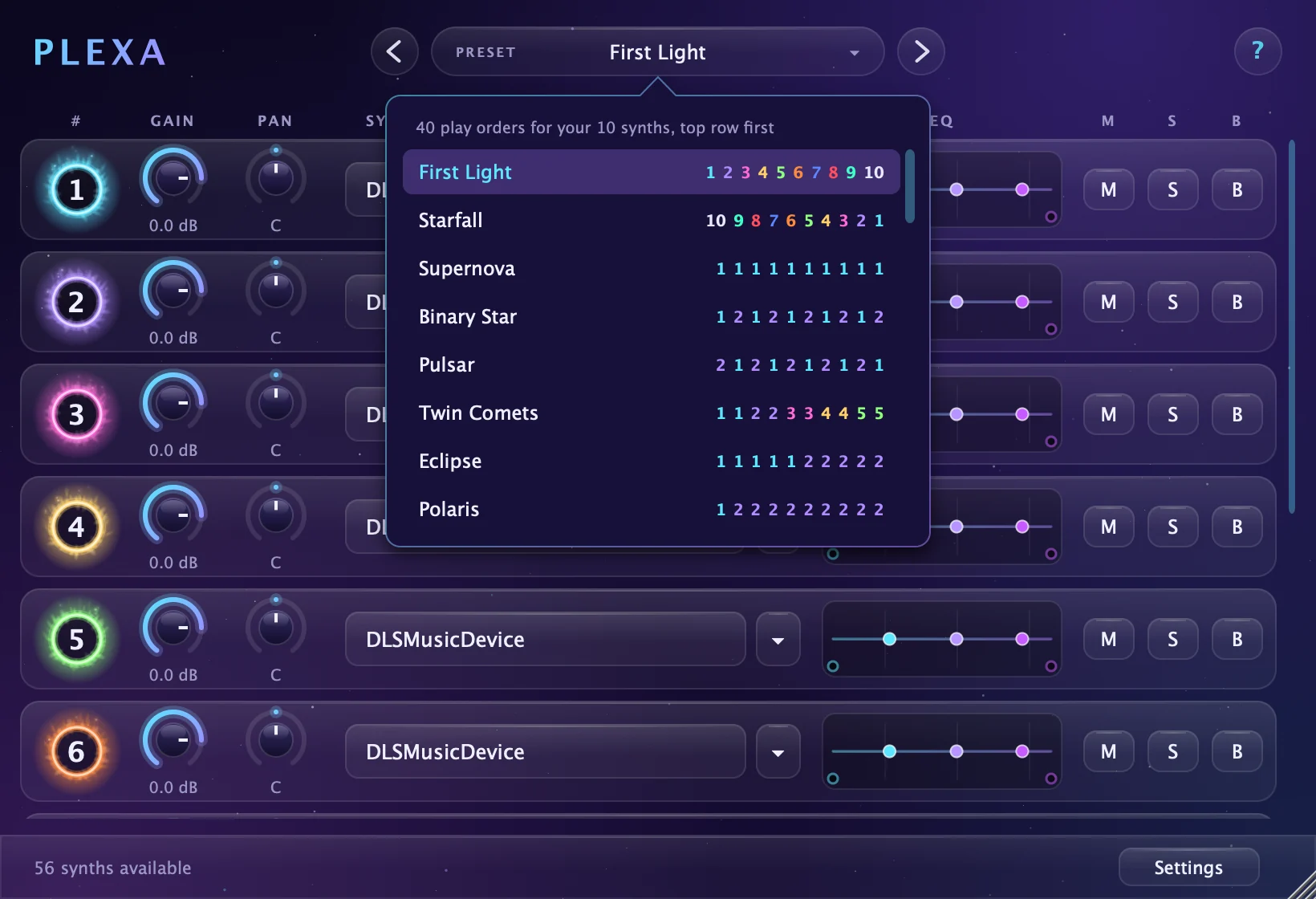
- Click the name to open the list. It shows 8 presets at a time and scrolls for the rest. The line at the top says how many play orders there are for the synths you have loaded. Beside each preset are the numbers it gives your rows, top row first, in their fire colours. Hover over a preset for a short description of its pan, level and EQ. Click one to choose it, or use the up and down arrow keys and press Return. Escape or a click outside closes the list.
- With no synths loaded, the bar says Add synths to see presets and its arrows are greyed out, since a preset has no synths to set. The presets appear as soon as you add a synth.
- The arrows either side of the name step to the previous or next preset in the list, and so does scrolling over the bar: down for the next, up for the previous, one preset per click of a mouse wheel. They wrap round, so after the last preset comes the first again, and before the first comes the last. The arrow keys in the list wrap round too.
- The preset is saved with your project.
Any number of synths
Every preset works with anything from 1 to 10 synths. A preset is a pattern rather than a fixed list of settings, so it stretches to fit: Starfall numbers 3 synths 3, 2, 1 and 8 synths 8, 7, 6, 5, 4, 3, 2, 1, and its stereo spread and volume fade stretch with it. A name always means the same idea, whatever the count.
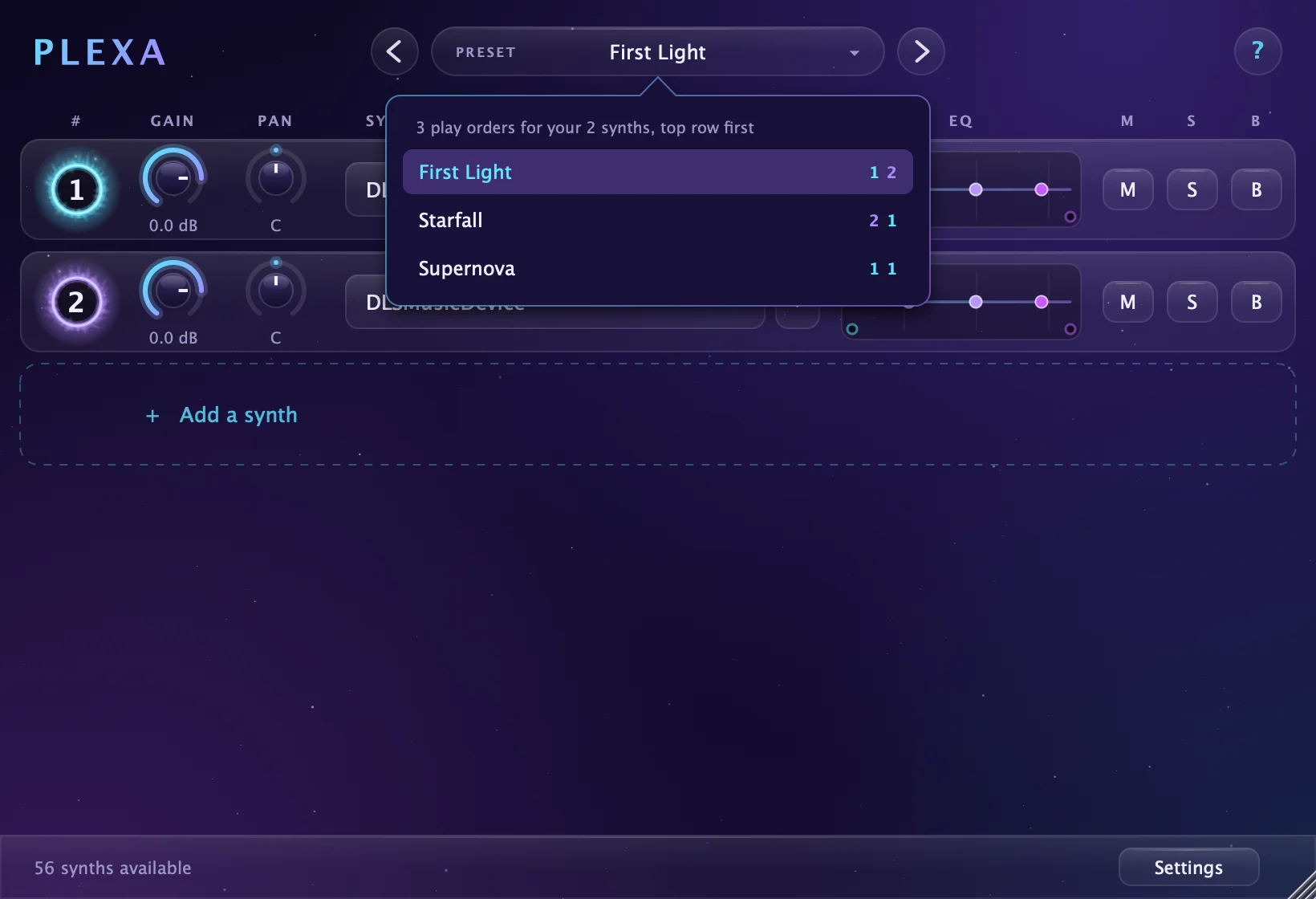
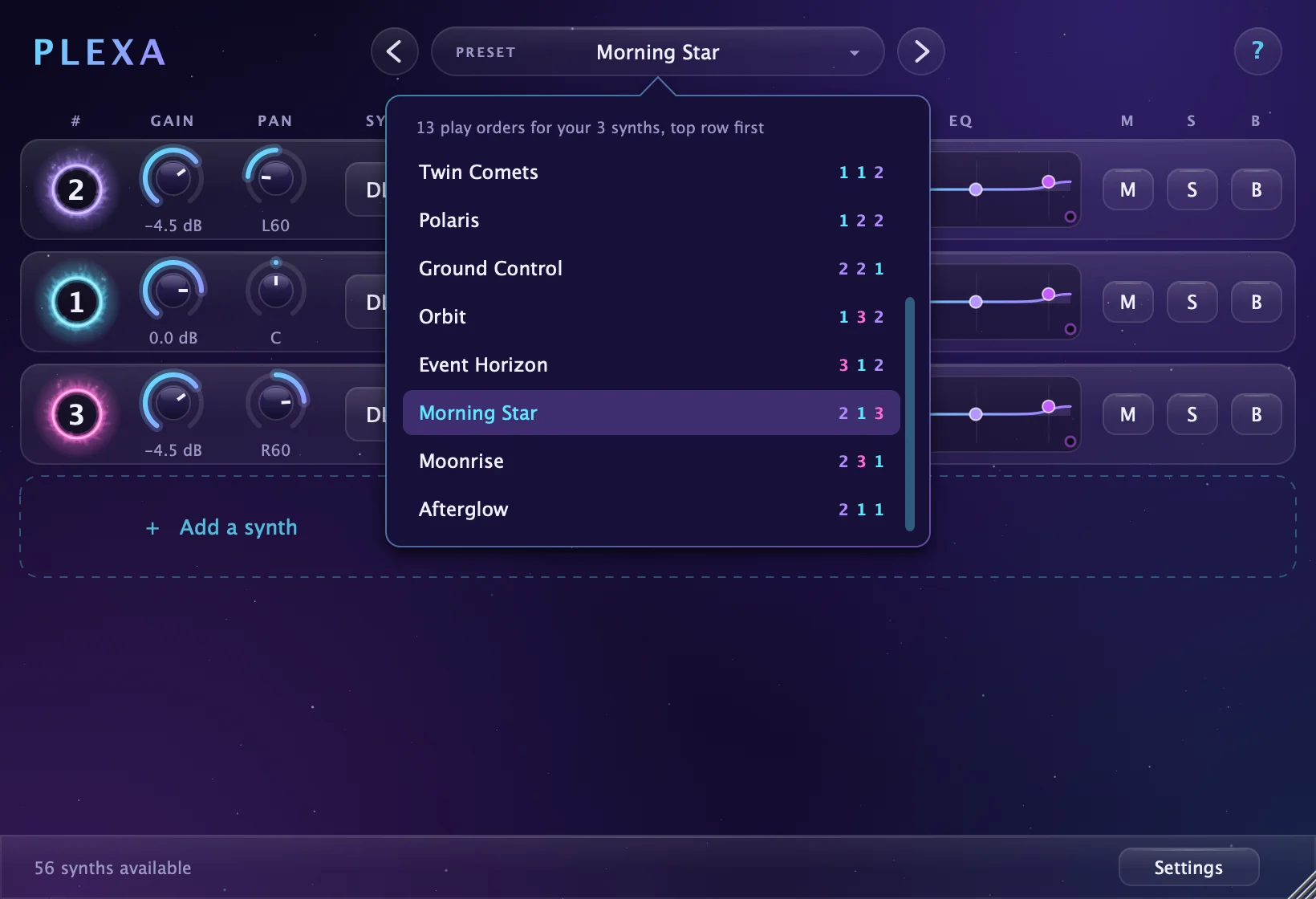
The list only offers presets whose play order is different with the synths you have loaded, up to 40 of them. With fewer synths many patterns come out the same, so a preset that would play exactly like one above it in the list is left out:
| Synths loaded | Presets offered |
|---|---|
| 1 | 1: First Light (one synth plays every note) |
| 2 | 3: 1 2, 2 1 and 1 1 |
| 3 | 13: every possible play order |
| 4 to 10 | 40 |
Numbers that aren't used are skipped, so with two synths 2 2 plays exactly like 1 1: both synths play the first key together. That's why two synths have 3 play orders rather than 4. Every name in a list is different, and so is every play order.
- Adding or removing a synth re-fits the preset, so its pattern always covers every synth: add a fourth synth to Starfall and the numbers become 4, 3, 2, 1. Duplicating a synth does the same.
- Once you change something by hand (a number, a knob or an EQ), the bar shows edited next to the name and Plexa stops re-fitting, so your changes are never overwritten. Choose the preset again to go back to it.

- Volume stays balanced with any number of synths. Synths that share a number are turned down so the layer is about as loud as one synth (3 dB each for a pair, 6 dB each for four). Fades from the first turn to the last are spread evenly over however many turns there are, never more than 6 dB in all.
The table lists all 48 presets, most useful first: which numbers of synths each one is offered for, and its pattern with 4 and with 8 synths ("-" where it isn't offered, because a preset above it already has that play order or the list is full).
| Preset | Play order | Offered with | 4 synths | 8 synths | Mix |
|---|---|---|---|---|---|
| First Light | Plays top to bottom | 1–10 synths | 1 2 3 4 | 1 2 3 4 5 6 7 8 | Centred; flat EQ |
| Starfall | Plays bottom to top | 2–10 synths | 4 3 2 1 | 8 7 6 5 4 3 2 1 | First turn left, last right; later notes softer; bright to warm |
| Supernova | Every synth plays every note | 2–10 synths | 1 1 1 1 | 1 1 1 1 1 1 1 1 | Spread left to right; airy top |
| Binary Star | Two layers taking turns | 3–10 synths | 1 2 1 2 | 1 2 1 2 1 2 1 2 | First turn left, last right; warm and bright in turn |
| Pulsar | Two layers taking turns, second row first | 3–10 synths | 2 1 2 1 | 2 1 2 1 2 1 2 1 | Spread left to right; first note louder; bright to warm |
| Twin Comets | Neighbouring pairs together, top pair first | 3–10 synths | 1 1 2 2 | 1 1 2 2 3 3 4 4 | Alternating left and right; warm to bright |
| Eclipse | Top half together, then bottom half | 5–10 synths | - | 1 1 1 1 2 2 2 2 | Spread left to right; later notes louder; warm and bright in turn |
| Polaris | Top row alone, then the rest together | 3–10 synths | 1 2 2 2 | 1 2 2 2 2 2 2 2 | First turn centred, the rest spread; first note louder; first note cuts through |
| Ground Control | Bottom row alone, then the rest together | 3–10 synths | 2 2 2 1 | 2 2 2 2 2 2 2 1 | First turn centred, the rest spread; first note louder; warm |
| Pendulum | Mirrored pairs, outside first | 4–10 synths | 1 2 2 1 | 1 2 3 4 4 3 2 1 | Spread left to right; flat EQ |
| Gravity Well | Middle first, then mirrored pairs outwards | 4–10 synths | 2 1 1 2 | 4 3 2 1 1 2 3 4 | First turn centred, then further out; first note louder; warm |
| Orbit | Top, bottom, then inwards | 3–10 synths | 1 3 4 2 | 1 3 5 7 8 6 4 2 | Spread left to right; glassy |
| Event Horizon | Middle first, then outwards | 3–10 synths | 4 2 1 3 | 8 6 4 2 1 3 5 7 | First turn centred, then further out; later notes softer; warm |
| Triple Moon | Three layers taking turns | 4–10 synths | 1 2 3 1 | 1 2 3 1 2 3 1 2 | First turn left, last right; flat EQ |
| Moonfall | Three layers taking turns, third row first | 4–10 synths | 3 2 1 3 | 3 2 1 3 2 1 3 2 | First turn left, last right; later notes softer; bright to warm |
| Morning Star | Second row first, then top to bottom | 3–10 synths | 2 1 3 4 | 2 1 3 4 5 6 7 8 | First turn centred, then further out; first note louder; airy top |
| Comet Tail | Top to bottom from the second row, top row last | 4–10 synths | 4 1 2 3 | 8 1 2 3 4 5 6 7 | Spread left to right; later notes louder; warm to bright |
| Moonrise | Bottom row first, then top to bottom | 3–10 synths | 2 3 4 1 | 2 3 4 5 6 7 8 1 | Spread right to left; warm |
| Afterglow | All but the top row together, then the top row | 3–10 synths | 2 1 1 1 | 2 1 1 1 1 1 1 1 | Spread left to right; later notes softer; warm |
| Last Light | All but the bottom row together, then the bottom row | 4–10 synths | 1 1 1 2 | 1 1 1 1 1 1 1 2 | Spread left to right; later notes louder; airy top |
| Halo | Top and bottom rows together, then the middle together | 5–10 synths | - | 1 2 2 2 2 2 2 1 | Spread left to right; airy top |
| Stellar Core | The middle together, then the top and bottom rows | 5–10 synths | - | 2 1 1 1 1 1 1 2 | First turn centred, the rest spread; first note louder; glassy |
| Quasar | Every other row, then the rest | 4–10 synths | 1 3 2 4 | 1 5 2 6 3 7 4 8 | Spread left to right; airy top |
| Nebula Drift | Every other row from the second, then the rest | 4–10 synths | 3 1 4 2 | 5 1 6 2 7 3 8 4 | Spread left to right; later notes louder; warm |
| Retrograde | Bottom, top, then inwards | 4–10 synths | 2 4 3 1 | 2 4 6 8 7 5 3 1 | Spread right to left; later notes softer; bright to warm |
| Aurora | Down every other row, then back up the rest | 4–10 synths | 1 4 2 3 | 1 8 2 7 3 6 4 5 | Alternating left and right; warm to bright |
| Libration | Down every other row from the second, then back up the rest | 4–10 synths | 4 1 3 2 | 8 1 7 2 6 3 5 4 | Alternating left and right; later notes softer; bright to warm |
| Bubble Glass | Each pair of rows, lower one first | 4–10 synths | 2 1 4 3 | 2 1 4 3 6 5 8 7 | Alternating left and right; glassy |
| Gemini | Neighbouring pairs together, bottom pair first | 4–10 synths | 2 2 1 1 | 4 4 3 3 2 2 1 1 | Alternating left and right; later notes louder; warm to bright |
| Lunar Eclipse | Bottom half together, then top half | 5–10 synths | - | 2 2 2 2 1 1 1 1 | Spread right to left; warm and bright in turn |
| Twin Suns | Top two rows together, then the rest in order | 4–10 synths | 1 1 2 3 | 1 1 2 3 4 5 6 7 | First turn centred, then further out; first note louder; first note cuts through |
| Ion Trail | In order, the bottom two rows together last | 4–10 synths | 1 2 3 3 | 1 2 3 4 5 6 7 7 | Spread left to right; later notes softer; airy top |
| Lagrange | Top row, bottom row, then the middle together | 4–10 synths | 1 3 3 2 | 1 3 3 3 3 3 3 2 | First turn left, last right; glassy |
| Beacon | Every other row together, then the rest one by one | 4–10 synths | 1 2 1 3 | 1 2 1 3 1 4 1 5 | First turn centred, the rest spread; first note louder; first note cuts through |
| Double Helix | Two layers taking turns in pairs | 5–10 synths | - | 1 1 2 2 1 1 2 2 | Alternating left and right; warm and bright in turn |
| Wormhole | Two layers in mirrored pairs | 5–10 synths | - | 1 2 2 1 1 2 2 1 | Spread left to right; mixed tones |
| Constellation | A shuffled order | 4–10 synths | 4 2 3 1 | 6 3 5 1 8 4 2 7 | Scattered across; mixed tones |
| Cascade | Groups growing down the rows | 4–10 synths | 1 2 2 3 | 1 2 2 3 3 3 4 4 | First turn centred, then further out; later notes softer; bright to warm |
| Spiral Arm | Groups shrinking down the rows | 6–10 synths | - | 1 1 2 2 2 3 3 4 | Spread left to right; later notes louder; warm to bright |
| Solar Wind | Top row first, then bottom to top | 4–10 synths | 1 4 3 2 | 1 8 7 6 5 4 3 2 | First turn centred, then further out; first note louder; airy top |
| Aqua Lagoon | Four layers taking turns | 5 synths | - | - | First turn left, last right; glassy |
| Red Shift | Top to bottom, the bottom two swapped | 4 synths | 1 2 4 3 | - | Spread left to right; warm |
| Blue Shift | Bottom to top, the bottom two swapped | 4 synths | 4 3 1 2 | - | Spread right to left; airy top |
| Penumbra | Bottom row, the middle together, then the top row | 4 synths | 3 2 2 1 | - | First turn left, last right; later notes softer; warm |
| Dark Matter | Bottom to top from the second-last row, bottom row last | 4 synths | 3 2 1 4 | - | Spread right to left; later notes louder; warm |
| Daybreak | Bottom two rows together, then top to bottom | 4 synths | 2 3 1 1 | - | First turn centred, then further out; later notes louder; airy top |
| Sunset | Bottom to top, the top two rows together last | 4 synths | 3 3 2 1 | - | Spread left to right; later notes softer; warm |
| Far Side | Bottom half, then top half, each top to bottom | 4 synths | 3 4 1 2 | - | Spread right to left; glassy |
The Plexa window
Each row is one synth, up to 10, with its play-order number on the left. The bottom bar shows how many synths Plexa found on your computer, with the Settings button at its right. The preset bar at the top sets every row at once (see Presets).
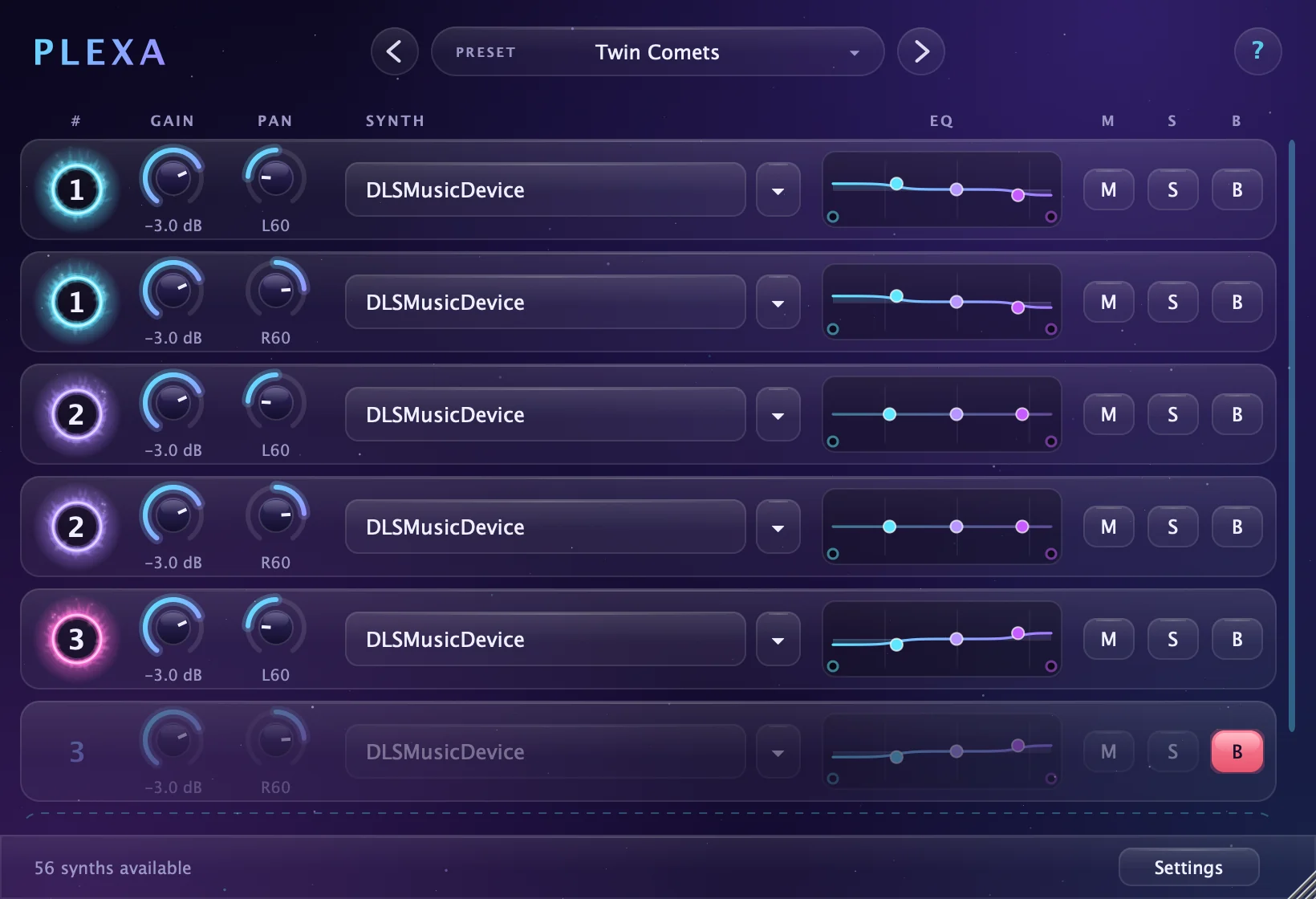
| Control | What it does |
|---|---|
| Preset bar (top) | Sets every row's play order, gain, pan and EQ from a preset. Click the name for the list, or use the arrows or scroll over it to step through the presets. Shows edited after the name once you've changed something by hand. See Presets. |
| # (row number) | This synth's play-order number. Scroll, drag or click its arrows to change when it plays (see Changing the play order). While the synth is on, the number burns with a ring of fire in that number's colour; synths that share a number burn the same colour, so you can see which are layered. Dimmed when the synth is bypassed. |
| Gain knob | Volume of this synth, from silent (-inf) to +6 dB. Drag up or down; double-click or Option-click (Alt-click on Windows) for 0 dB. To type an exact value, double-click the value under the knob, type it (such as -6 or -inf) and press Return; Escape cancels. |
| Pan knob | Moves this synth left (L) or right (R). C is centre, which leaves the synth's own stereo spread as it is. Double-click or Option-click (Alt-click on Windows) to re-centre. To type an exact value, double-click the value under the knob and type it, such as L30, R50 or C, then press Return. |
| Synth name | Click to open the synth's own window and change its sound. While that window is in front, the synth plays every note on its own (see Saving, recalling and synth windows). A name too long for the box ends in "..."; hover over it to see it in full. |
| ▾ button | Opens a small menu: Open the synth's window, Replace with... (pick a different synth for this row, keeping its gain, pan, EQ and buttons), Duplicate (an exact copy just below, with the same sound and settings, playing at a new number) or Remove the row. |
| EQ | A three-band EQ for this synth, with a low cut and a high cut: drag its dots to boost or cut lows, mids and highs. See Shaping each synth with the EQ. |
| M (Mute, amber) | Silences this synth. It still takes its turn, so its notes go silent rather than moving to another synth. |
| S (Solo, green) | Plays only soloed synths. Several can be soloed at once. |
| B (Bypass, coral) | Takes this synth out of the rotation: it gets no notes and makes no sound, the row dims and its fire goes out. Any notes it was holding are released. |
| + Add a synth | Adds a new row at the bottom. |
| Settings (bottom right) | Your licence (see your code, or deactivate this computer), Refresh synth list (checks for synths you've installed or removed since Plexa opened), and Single core. See Settings. |
| ? (top right) | Takes the tour of Plexa's controls. See Taking the tour. |
Shaping each synth with the EQ
Every row has its own EQ: three bands to boost or cut, plus a low cut and a high cut. Use them to carve each layer so it sits with the others, for example cutting the lows from a pad so the bass synth stays clear. The curve shows exactly what you will hear.
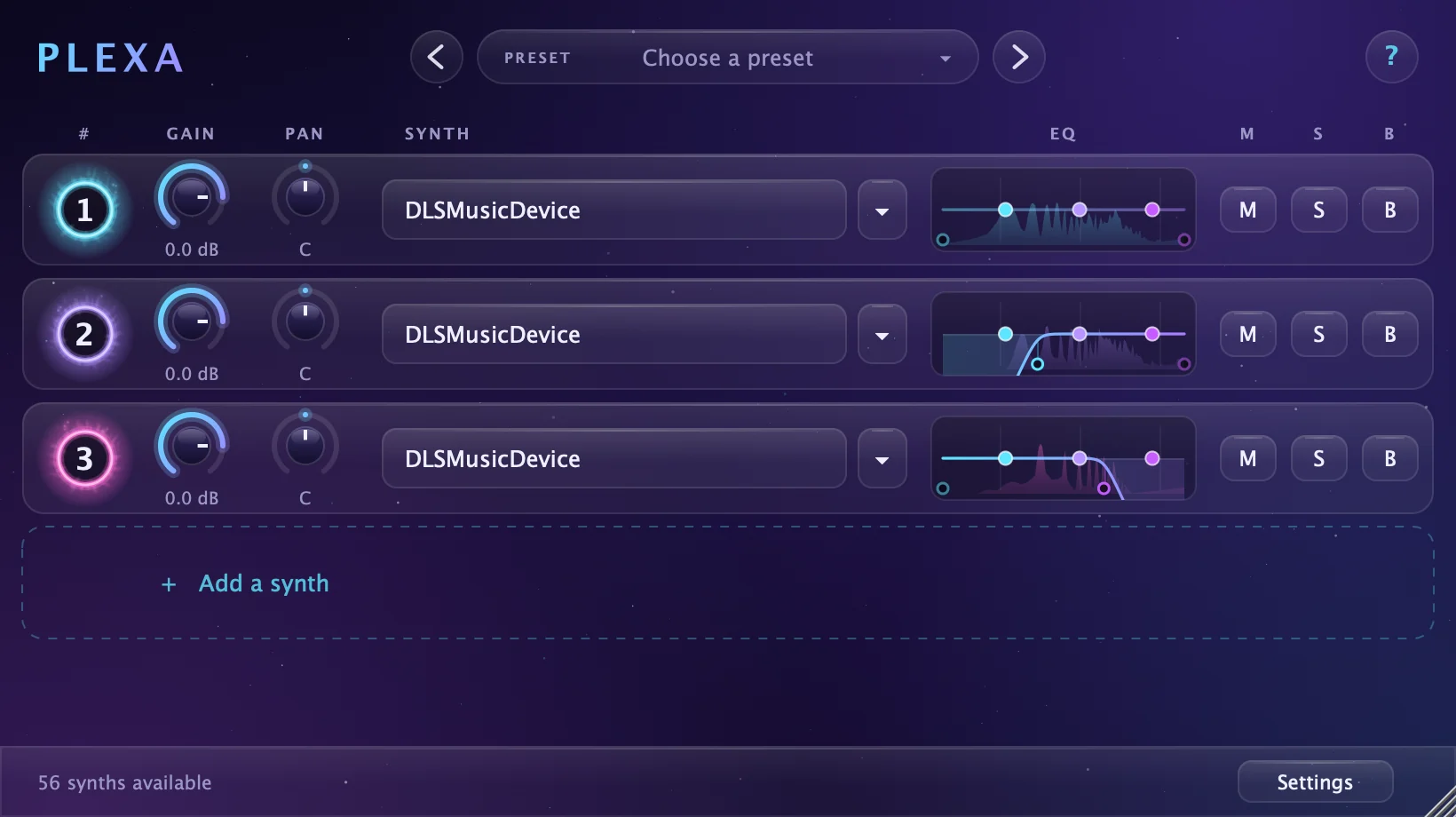
| Dot | Colour | What it shapes | Range |
|---|---|---|---|
| Low | Aqua | Everything below its frequency (a low shelf) | 20 Hz to 1 kHz |
| Mid | Violet | A band around its frequency (a bell) | 60 Hz to 12 kHz |
| High | Pink | Everything above its frequency (a high shelf) | 1 kHz to 20 kHz |
| Low cut | Aqua ring (hollow), bottom left | Takes away everything below its frequency (a high-pass filter) | Off, or 20 Hz to 5 kHz |
| High cut | Pink ring (hollow), bottom right | Takes away everything above its frequency (a low-pass filter) | Off, or 200 Hz to 20 kHz |
- Behind the curve, the frequencies the synth is playing rise and fall as it plays, in the colour of its play-order number, so you can see what you're boosting or cutting. They show the sound after the EQ, so a cut makes them drop away. This only runs while Plexa's window is open, and doesn't touch the sound or slow it down.
- Drag a dot up to boost or down to cut, by up to 15 dB. Drag it sideways to choose the frequency.
- Scroll over a dot to make it narrower or wider (for the mid dot) or steeper or gentler (for the shelves).
- The hollow dots in the bottom corners are the low and high cuts, and they start off. Drag one inwards to cut away the lows or highs, and back to its corner to turn it off again. Scroll over one to change how steeply it cuts: 12, 24 (to start with), 36 or 48 dB per octave. The two can't cross, so there's always something left to hear.
- Presets leave the cuts alone, so a cut you've set (on a pad's lows, say) stays while you try presets.
- Hover or drag to see the dot's exact settings at the top of the curve.
- Near the middle line a dot snaps to 0 dB, so getting back to flat is easy.
- Double-click or Option-click a dot (Alt-click on Windows) to reset it, or do the same on empty space to reset the whole EQ.
The EQ sits after the synth and before the row's gain and pan. A flat EQ (all dots on the middle line, both cuts off) leaves the sound untouched and uses no extra processing.
Choosing synths
Click + Add a synth (or ▾ > Replace with... on a row) to open the synth picker: a short, scrolling list inside Plexa's window, sorted A to Z.
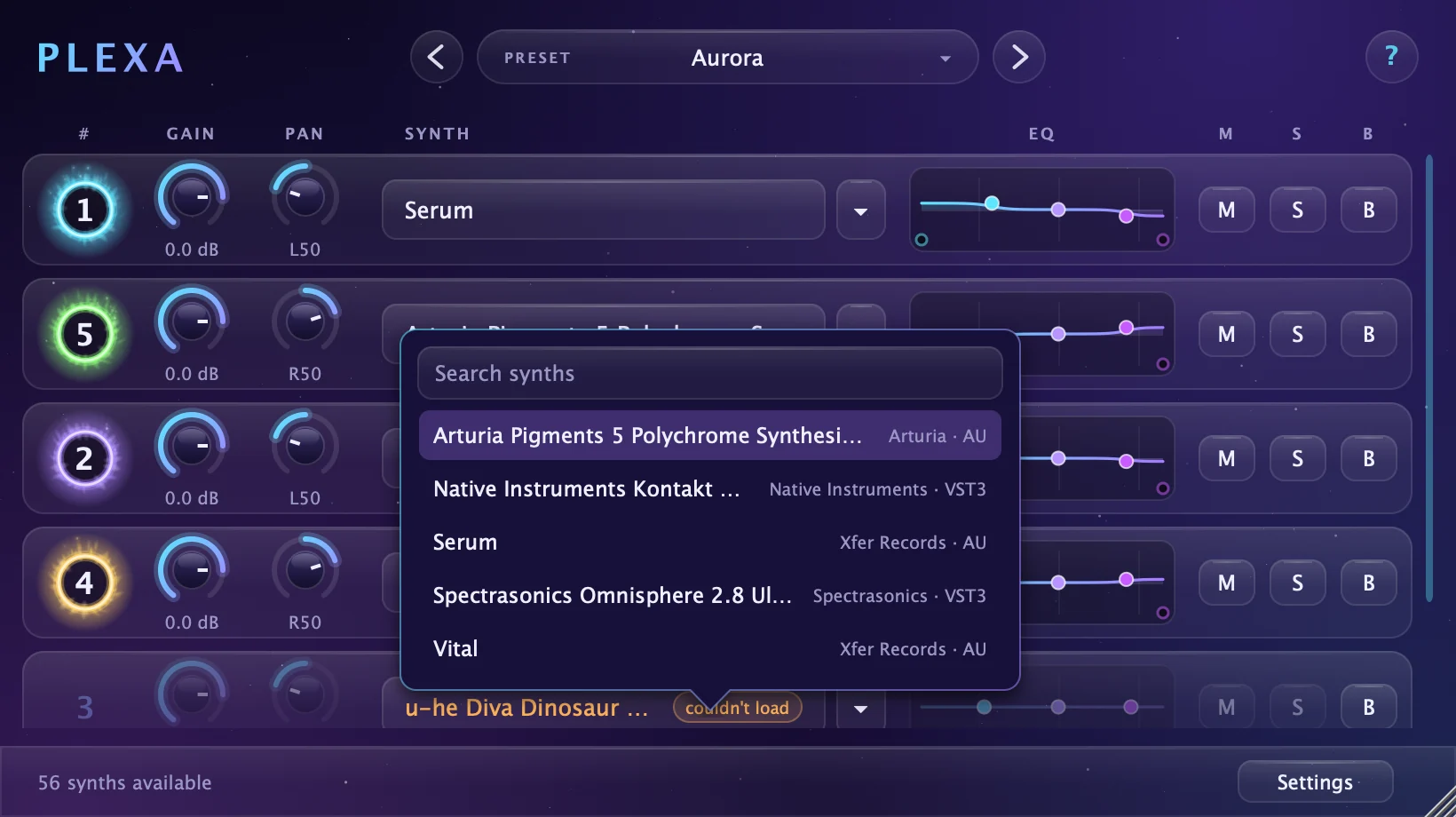
- Search: start typing to narrow the list. Every word you type must appear in the synth's name, maker or format, so ser au finds Serum's AU version.
- Pick: click a synth, or use the up and down arrow keys and press Return. Escape or a click outside closes the picker. Hover over a name that's cut short to see it in full.
- AU or VST3: on a Mac, synths installed in both formats appear twice, labelled AU and VST3. Either works; AU tends to be the safer choice on a Mac. Windows has only VST3, so that's all Plexa lists there.
- Synths made only for Intel Macs (such as older versions of Ample Sound, Kontakt or Vital) still work on Apple Silicon Macs: macOS runs them with Rosetta in a separate helper process. Plexa starts that in the background, so the row says loading for a few seconds (longer the very first time) while your DAW carries on as normal. Only their AU versions are listed, because an Intel-only VST3 can't run on an Apple Silicon Mac at all.
Plexa finds your synths by itself and remembers them. It reads them from macOS's list of Audio Units and from the information file most VST3 plugins include, so it never has to open a plugin to find out what it is. The list updates each time Plexa's window opens, in well under a second. If you install a synth while Plexa is open, click Settings at the bottom right, then Refresh synth list.
Some VST3 plugins don't include that information file. On a Mac, Plexa can't tell whether they are synths and leaves them out: hover over the synth count in the bottom bar to see how many. Most of them have an AU version that does appear.
On Windows, Plexa checks each of those plugins once with its synth checker, a small program that comes inside Plexa. It runs on its own, outside your DAW, so a plugin that misbehaves while being checked can't disturb your DAW. While it works, the bottom bar says Checking 1 new plugin..., and each synth it finds joins the list a few seconds later. Plexa checks a plugin again only after it's updated.
If a plugin closes or stops responding while being checked, Plexa leaves it out, and hovering over the synth count names it. Plexa tries it again after it's updated, or when you click Settings, then Refresh synth list.
Playing from your computer keyboard
While a synth's window is in front, your computer keyboard plays Plexa like a piano, so you can audition sounds without reaching for a MIDI keyboard. Only that synth plays: it takes every note, so you hear just the sound you're choosing (see Saving, recalling and synth windows).
| Keyboard row | Keys, left to right | Notes |
|---|---|---|
| Bottom letter row | Z S X D C V G B H N J M , L . ; / | C3 to E4 |
| Top letter row | Q 2 W 3 E R 5 T 6 Y 7 U I 9 O 0 P [ = ] | C4 (middle C) to G5 |
The letters play the white keys and the keys in between play the black keys: in the bottom row Z X C V B N M are C D E F G A B, and S D G H J are the sharps between them. Middle C is called C5 in FL Studio's note names.
- In Plexa's main window or your DAW, your DAW's own typing keyboard plays Plexa as usual.
- Shortcuts still work: keys held with Cmd or Ctrl are passed on, not played.
- Typing into a synth (naming a preset, searching its browser) works normally: the synth's text box takes the keys, not Plexa.
- Switching away from a synth's window, or back to it, lets go of every note that's playing, whether it came from your computer keyboard or your DAW, so nothing gets stuck. A key you're still holding as you click won't start again when you come back; press it afresh to play it.
Saving, recalling and synth windows
Plexa saves everything with your DAW project: the synths in each row, each synth's own sound and settings, the preset you chose, and every EQ, gain, pan, mute, solo and bypass setting.
- Adding a synth shows its row straight away, greyed out with a loading tag, then starts the synth. Some synths, such as Kontakt, take a few seconds to start, and your DAW's screen pauses while they do (just as when the DAW loads them itself), but the sound keeps playing. The row lights up once the synth is ready.
- Reopening a project reloads each synth into its row. Each row shows a loading tag after the synth's name for a moment while that happens, with the rest of the row greyed out until the synth is ready.
- A synth that isn't installed on the computer shows in orange with a couldn't load tag after its name. Plexa keeps its saved settings, so they come back when you open the project on a computer that has it.
- Synth windows float above your DAW so they don't get lost behind it, and they hide while you are using another app. Closing Plexa's window closes the synth windows too. A synth made only for Intel Macs shows an Opening… card for a second or two while its window comes through, then the window grows to the synth's own size. The card stays behind it until the synth has drawn its window, so you never see a blank white box.
- A synth that stops working: a synth made for Intel Macs runs in a separate process, and if that synth crashes, Plexa notices as soon as macOS reports it (about ten seconds later). Its window closes and its row is greyed out with a stopped working tag, while your other synths carry on. Click its name to load it again, with the sound it had when your project was last saved. Saving your project before then keeps that sound too.
- A synth plays alone while its window is in front. It plays every note, from your DAW or your computer keyboard, as if it were the only synth loaded, so you can hear each sound as you choose it. Its row in Plexa shows a playing every note tag. Its gain, pan and EQ still apply, but not its M, S or B buttons, so you hear it even if it's muted or bypassed. Click back in Plexa (or anywhere in your DAW), or close the synth's window, and the notes are shared out again.
- Your synth list is remembered between sessions. It's stored in ~/Library/Application Support/Plexa on a Mac, and in C:\Users\(your name)\AppData\Roaming\Plexa on Windows.
Opening a project from another computer
You can open a project made on a Mac on a Windows PC. Each synth may be a different format there (Windows has no AU) or installed somewhere else, so Plexa looks for the same synth by its plugin ID, then by its name and maker, and loads the one it finds.
- The same format on both computers (VST3 on both, say): the synth's sound comes across exactly as it was.
- A Mac AU on Windows: Plexa loads the synth's VST3. For many synths, such as Dexed, the sound comes across too. For others, the synth starts from its default sound, and its row shows a default sound tag: hover over the name for details.
- Going back: Plexa keeps the Mac's synth and sound in the project, so they're still there for the Mac, unless you change that synth's sound on Windows (then the new sound is saved instead).
- A synth that isn't on the Windows PC at all shows couldn't load, as before, and Plexa keeps everything about it for when you open the project where it's installed.
- A project made on Windows doesn't find its synths on a Mac yet: they show couldn't load, and Plexa keeps everything about them.
Settings
Click Settings at the bottom right of Plexa's window for:
- Licence: the code Plexa is activated with, and deactivating this computer (see Activating Plexa).
- Refresh synth list: looks for synths you've installed or removed while Plexa is open (see Choosing synths).
- Single core: a switch. Hover over the ? beside it to see what it does.
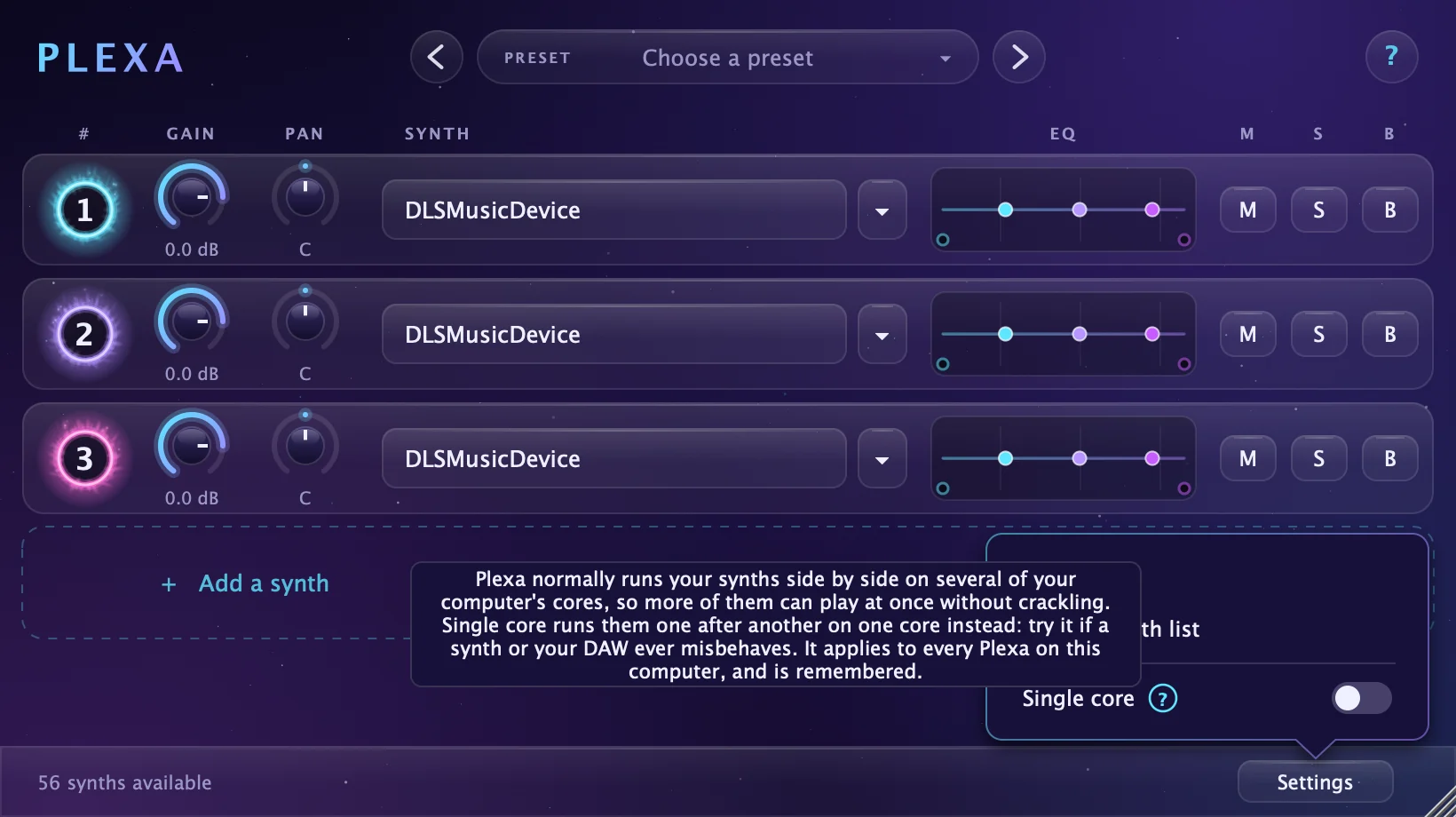
Plexa runs your synths side by side on several of your computer's cores, the way a DAW runs separate tracks, so more synths can play at once without crackling. The sound is exactly the same either way. Single core runs them one after another on one core instead: try it if a synth or your DAW ever misbehaves. It applies to every Plexa on your computer, and is remembered next time.
Activating Plexa
Plexa needs a licence code before it does anything. Until it's activated on your computer, its window is greyed out behind a card asking for the code, and nothing plays: synths can't be added, and the synths in a project you open are kept but silent, dimmed with a needs licence tag.
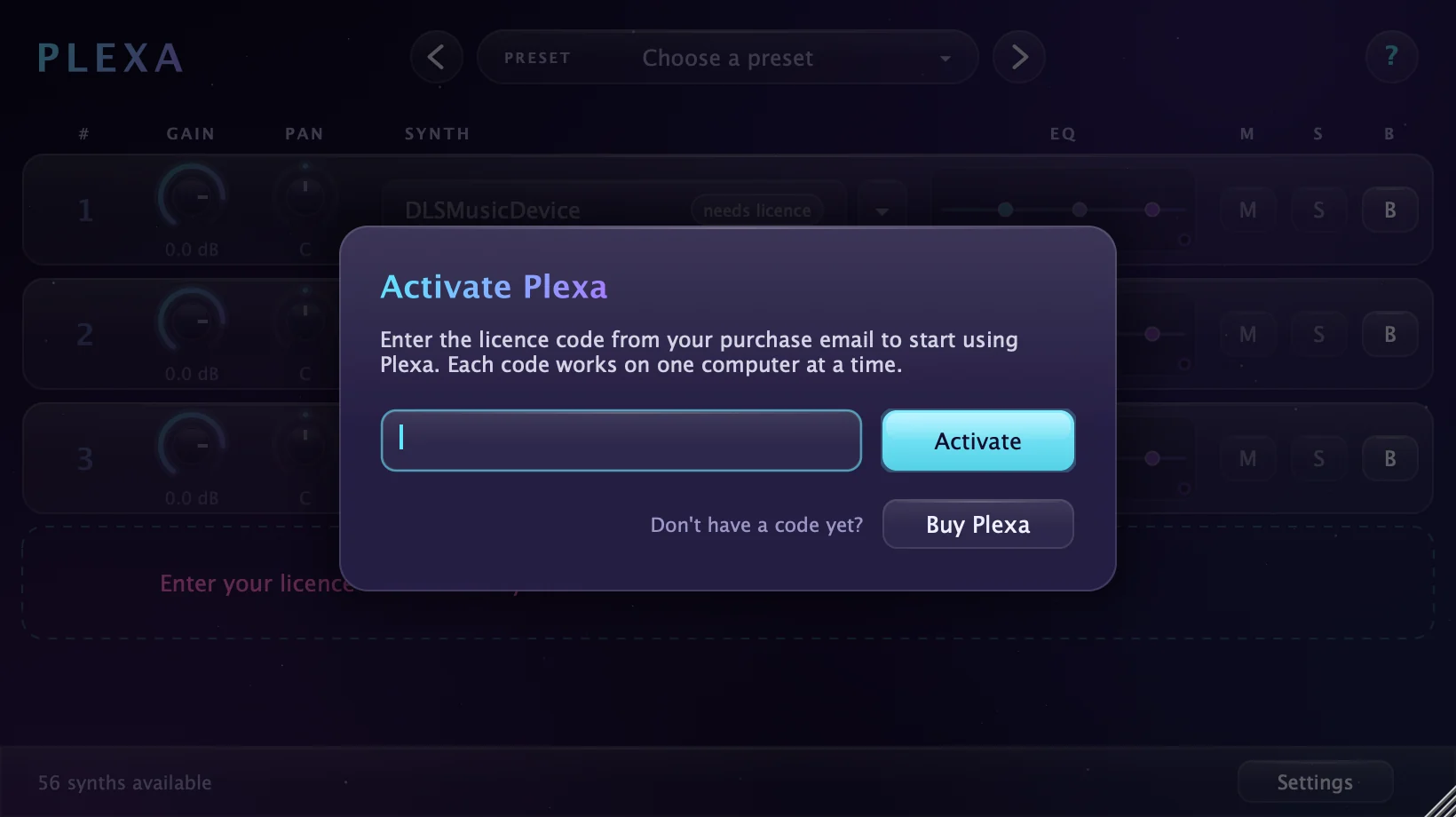
- Copy the licence code from your purchase email.
- Paste it into the box (or type it). Capital letters don't matter.
- Press Return or click Activate. Plexa checks the code with the licence server, which takes a moment and needs an internet connection.
Once the code is accepted, the card closes, everything unlocks, and Plexa offers its tour (see Taking the tour). Plexa stays activated on this computer, in every DAW and project, until you deactivate it, and never needs the internet again.
The card has no X: Plexa stays locked until a code is accepted. If a code isn't accepted, the message under the box says why (see Troubleshooting). If another DAW has Plexa open while you activate it, that one unlocks within a few seconds too.
No code yet? Click Buy Plexa on the card to buy it on the WelcomeCarson website.
To see the code Plexa is activated with, or to deactivate this computer, click Settings at the bottom right of Plexa's window, then Licence.
Moving Plexa to another computer
Each licence code works on one computer at a time, Mac or Windows. To move Plexa to a new computer, including from a Mac to a Windows PC or back:
- On the old computer, click Settings at the bottom right of Plexa's window, then Licence, then Deactivate this computer. Plexa asks first: click Deactivate to confirm, or Cancel. Plexa then stops working on that computer until a code is entered again (your projects keep their synths).
- On the new computer, enter the same code as usual.
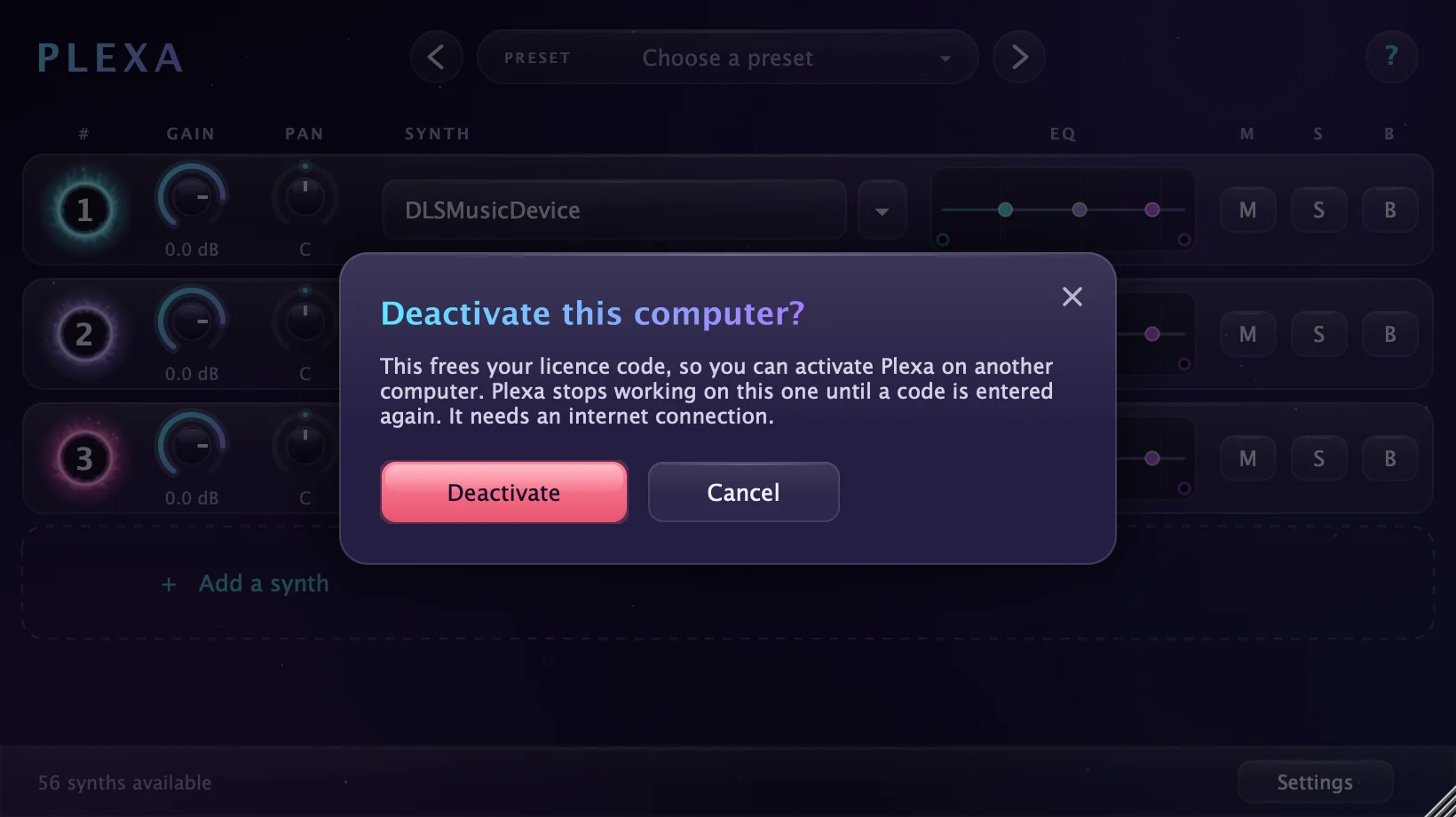
Deactivating needs an internet connection. If Plexa can't reach the licence server, it says so and stays activated, so nothing is lost. If the old computer is lost or broken, email [email protected] with your receipt number and we'll free your code.
Troubleshooting
| Problem | What to do |
|---|---|
| Plexa isn't in my DAW's instrument list | Rescan plugins in your DAW (see Finding Plexa in your DAW). Check it was installed to the folders listed in Installing Plexa. |
| Windows says "Windows protected your PC" when I open the installer | Windows says this about new downloads it hasn't seen many times yet. Click More info, check the publisher, then click Run anyway. |
| I installed Plexa for me only, and my DAW doesn't find it | Some DAWs don't look in your own VST3 folder. Add C:\Users\(your name)\AppData\Local\Programs\Common\VST3 to the folders your DAW searches for plugins, then rescan. Or install Plexa again and choose Install for all users. |
| The installer or uninstaller asks to close my DAW | Your DAW has Plexa open. Save your project and close the DAW, then carry on. |
| FL Studio says "There was a problem opening the plugin Plexa for an unknown reason" | FL is using an outdated record of Plexa. In the Plugin Manager, tick Rescan previously verified plugins and click Find installed plugins. |
| A synth I own isn't in Plexa's list | Click Settings at the bottom right of Plexa's window, then Refresh synth list. On a Mac, some VST3 plugins can't be identified without opening them, so Plexa leaves them out; use the synth's AU version instead. On Windows, hover over the synth count: if it names the synth, Plexa's synth checker couldn't check it. Update the synth, or click Settings, then Refresh synth list to try again. |
| A row shows a couldn't load tag | The synth isn't installed on this computer, or failed to start. Hover over the name to see the reason. Use the row's ▾ menu to replace or remove it. |
| A row shows a default sound tag | The project was saved on another computer with a version of the synth whose sound this one can't read (see Opening a project from another computer). Choose a sound in the synth's window, or open the project on the other computer to get the original back. |
| A row shows a stopped working tag | That synth crashed. It runs in a separate process (as macOS does for synths made for Intel Macs), and that process ended. Click its name, or choose Load (its name) again from the row's ▾ menu, to load it with the sound it had when your project was last saved. If it keeps happening, check for an update to the synth. |
| A synth says loading for a while | It was probably made only for Intel Macs, so macOS runs it with Rosetta (hover over its name to check). That takes a few seconds, and much longer the very first time while macOS translates it. Your DAW keeps working meanwhile, and the synth is quick to load from then on. |
| My DAW's screen pauses for a few seconds when I add a synth | Some synths, such as Kontakt, take a few seconds to start, and every DAW starts them on the same thread that draws its windows, so the screen waits until they're ready. The sound carries on meanwhile, and the new row shows its loading tag the whole time. |
| A layer is silent | Check the row's M (mute) and B (bypass) buttons, and whether another row is soloed (S). |
| Only one of my synths is playing | A synth's window is in front, so that synth plays every note on its own (its row says playing every note). Click Plexa's window, or close the synth's window, to hear them all again. |
| Too many notes land on one synth | That synth has the highest play-order number, which plays every extra key once all numbers are busy. Add more synths, give the synths different numbers, or play fewer notes at once. |
| Sustain pedal does nothing | That's intended: Plexa ignores the sustain pedal for now. |
| My computer keyboard doesn't play in a synth's window | Click the synth's window title bar so it's in front, then play. If a text box inside the synth is selected it takes the keys instead; click an empty part of the synth first. |
| "Add a synth" and Duplicate are greyed out | Plexa holds up to 10 synths. Remove one (▾ > Remove) to make room for another. |
| A preset replaced my gain, pan or EQ settings | That's what presets do: they set every row's play order, gain, pan and EQ. Plexa has no undo for this yet, so save your project (or a DAW preset of Plexa) before trying presets if you have a mix you want to keep. |
| A new synth doesn't follow the preset's pattern | Presets re-fit themselves when you add or remove a synth, but stop once you change something by hand (the bar then shows edited), so your changes aren't overwritten. Choose the preset again from the list to fit it to all your synths. |
| Some presets are missing from the list | The list only offers presets with different play orders for the synths you have loaded. With fewer synths many patterns come out the same (two synths have only 3 different orders), so the repeats are left out, and the arrows only step through what's listed. Add synths to see more, up to 40. |
| Some synths are dimmed with a needs licence tag | Plexa isn't activated on this computer yet, so nothing plays. The synths are kept, not deleted: enter your licence code (see Activating Plexa) to hear them all. |
| My licence code isn't accepted | Check for typing mistakes; pasting the code from your purchase email is easiest. Capital letters don't matter, and spaces at either end are ignored. The message under the code box says what went wrong. |
| Plexa says the code is already activated on another computer | Each code works on one computer. Deactivate it on the other computer first (Settings > Licence > Deactivate this computer), then try again. If you can't get to that computer, email [email protected] with your receipt number and we'll free the code. |
| Plexa asks for my licence code again | This computer was deactivated, or the licence details Plexa saved on it were deleted or damaged, for example by a clean-up app or after reinstalling macOS or Windows. Enter your code again: on the same computer it's accepted without using up another activation. |
| Plexa says it couldn't reach the licence server | Activating and deactivating need the internet. Check your connection, and any firewall that blocks your DAW, then try again. Once activated, Plexa works without the internet. |
| Crackles or stutters with several big synths playing | Plexa already shares your synths across your computer's cores (unless Single core is on in Settings). The synth with the highest number plays every key beyond the number of synths, so with big chords it does the most work: give your heaviest sound a lower number, or lower its unison or polyphony. Check your DAW's multithreading is on (in FL Studio, Options > Audio settings), and try a larger buffer. |